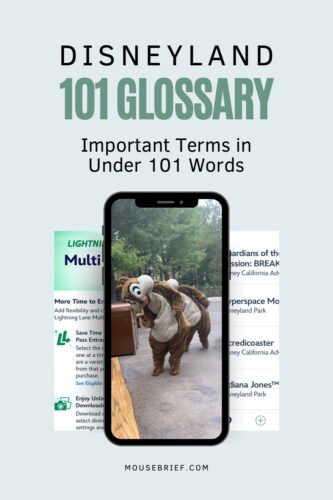
This is an entry for “Photopass Lenses” in our Disneyland 101 Glossary: Disneyland Resort definitions in under 101 words, from Mouse Brief. For answers to frequently asked questions about Photopass Lenses, keep reading after the entry.
PhotoPass Lenses work with your mobile device to add Disney park themed augmented reality effects to your photos. Examples of these effects include: bubbles reflecting your face, a character like Mickey peeking over your shoulder or turning your skin blue to make you resemble Genie (from Aladdin). Some lenses are (at the time of writing) only available with the purchase of Lightning Lane Multi Pass or Premier Pass. The lenses are accessed through the Disneyland app.
Thank you for reading this entry on “PhotoPass Lenses.” For more Disney deductions under 101 words plus answers to frequently asked querying, please explore our Disneyland 101 Glossary. For specific information about Lightning Lane Multi Pass, check-out our guide here. Now, for answers to frequently asked questions about PhotoPass Lenses, keep reading.
PhotoPass Lenses at Disneyland Resort, FAQs
How do I use PhotoPass Lenses at Disneyland Resort?
To use PhotoPass Lenses at Disneyland Resort or even outside Disneyland Resort, first make sure that you have the Disneyland app downloaded on a mobile device.
Now, open the menu in the bottom right-hand corner of the Disneyland app (the three horizontal lines that look like a little sandwich) and scroll down a way until you see the option for “PhotoPass Lenses.”
Once you select the PhotoPass Lenses option, you will encounter a long notice about Attribute Lenses. You can decide whether you will give the app and Disney permission to “use technology that detects key coordinates on your face and/or hands.” Allowing these Attribute Lenses then enables the PhotoPass Lenses to do things like digitally place hats on your head or a character on your should in the resulting photos. If you decline permission here, most PhotoPass Lenses will be unavailable to you.
You will also be presented with a PhotoPass Lenses tutorial, and this is where we are going to stop this answer to this particular FAQ, because that tutorial should tell you you everything you need to know about using PhotoPass Lenses ay Disneyland.
Are PhotoPass Lenses the same as Magic Shots?
PhotoPass Lenses are not the same as Magic Shots. While both add digital augmented reality enhancements to your photos, you obtain the photos differently.
Magic Shots come from Disney PhotoPass Photographers. To get them, find PhotoPass cast members in the parks and ask them to take your photo with their cameras. They take traditional photos, but they will also help you to pose for Magic Shots. When you connect the photos they take to your Disney account, you will be able to see any enhancements added with Magic Shots. From here, you can pay for the right to download the photos by buying them individually, buying PhotoPass or buying Lightning Lane Multi Pass or Lightning Lane Premier Pass.
With PhotoPass Lenses, you can see the digital enhancements in real time. Open the PhotoPass Lenses in the Disneyland mobile app as described above and choose the lens you would like. You will be able to see the digital enhancements that come with that lens, and you can snap a photo as soon as you are happy with the shot. These photos do not go into the photo gallery in your Disney account. Rather, you can save the snaps straight to your mobile device.
Are PhotoPass Lenses the same as PhotoPass?
Disneyland Resort PhotoPass Lenses are not the same as PhotoPass. With the PhotoPass service, you have purchased the right to download photos taken of you and linked to your Disney account by PhotoPass photographers at Disneyland Resort. This service includes Magic Shots.
On the other hand, PhotoPasses Lenses are integrated into the Disneyland mobile app. You take the photos using your mobile device and then decide whether you would like to save them straight to your device.
Both PhotoPass and PhotoPass Lenses are included when you purchase Lightning Lane Multi Pass. You may also purchase PhotoPass separately.
I can only access a few PhotoPass Lenses, how do I get more?
In the past, Disneyland Resort has offered a few PhotoPass Lenses for free while keeping all others for the use of those who have purchased Lightning Lane Multi Pass. If you want access to all PhotoPass Lenses, you will need to purchase Lightning Lane Multi Pass or Lightning Lane Premier Pass. Then you will have access to PhotoPass Lenses for 45 days!
The Disneyland website says “Some Disney PhotoPass Lenses will remain accessible in the Disneyland app until 5:59 AM Pacific Time on the 45th day after using your Disney [Lightning Lane Multi Pass or Lightning Lane Premier Pass] service purchase.” Interestingly, those brackets are in there because the website still says “Genie+.” In any case, we have found these forty-five days to be accurate for now, but there is a catch…
Most of the PhotoPasses Lenses require you to be at Disneyland Resort and even within certain areas of Disneyland Resort in order to use them. They are tied to particular locations. So, you will not get much use out of them at home for those forty-five days.
Why would I use PhotoPass Lenses at Disneyland Resort?
We almost certainly would not pay to use PhotoPass Lenses on their own. But as a perk included with Lightning Lane Multi Pass, we quite like them. They always seem to get our kids giggling, and we have found them to be easy to use and surprisingly reliable.
Our favorite use for PhotoPass Lenses is for a little fun when we are waiting in line. We get some cool digital souvenirs of our time at Disneyland Resort, and we get to play with the different lenses during what might otherwise be a boring wait. (We have other ideas for enjoying your time in line here: Make the Best of Your Time in Line at Disneyland and Have Fun.
Thanks for reading this entry in our Disneyland 101 Glossary on PhotoPass Lenses.
For help planning your Disneyland Resort visit from start to finish, please explore our Step-by-Step Disneyland Prep. And for help making the best use of your Lightning Lane Multi Pass, check-out our series here: (1) Big Guide to Lightning Lane Multi Pass at Disneyland Resort (2) Ride More: 9 Strategies for Lightning Lane Multi Pass at Disneyland and (3) Lightning Lane Multi Pass FAQs for Disneyland Resort in California. Thanks again for reading!